|
|
||
|---|---|---|
| examples | ||
| prompts | ||
| costs.md | ||
| README.md | ||
| troubleshooting.md | ||

Build Your First Project with Claude Code
A todo app in 15 minutes. No coding experience needed.
What You Will Build
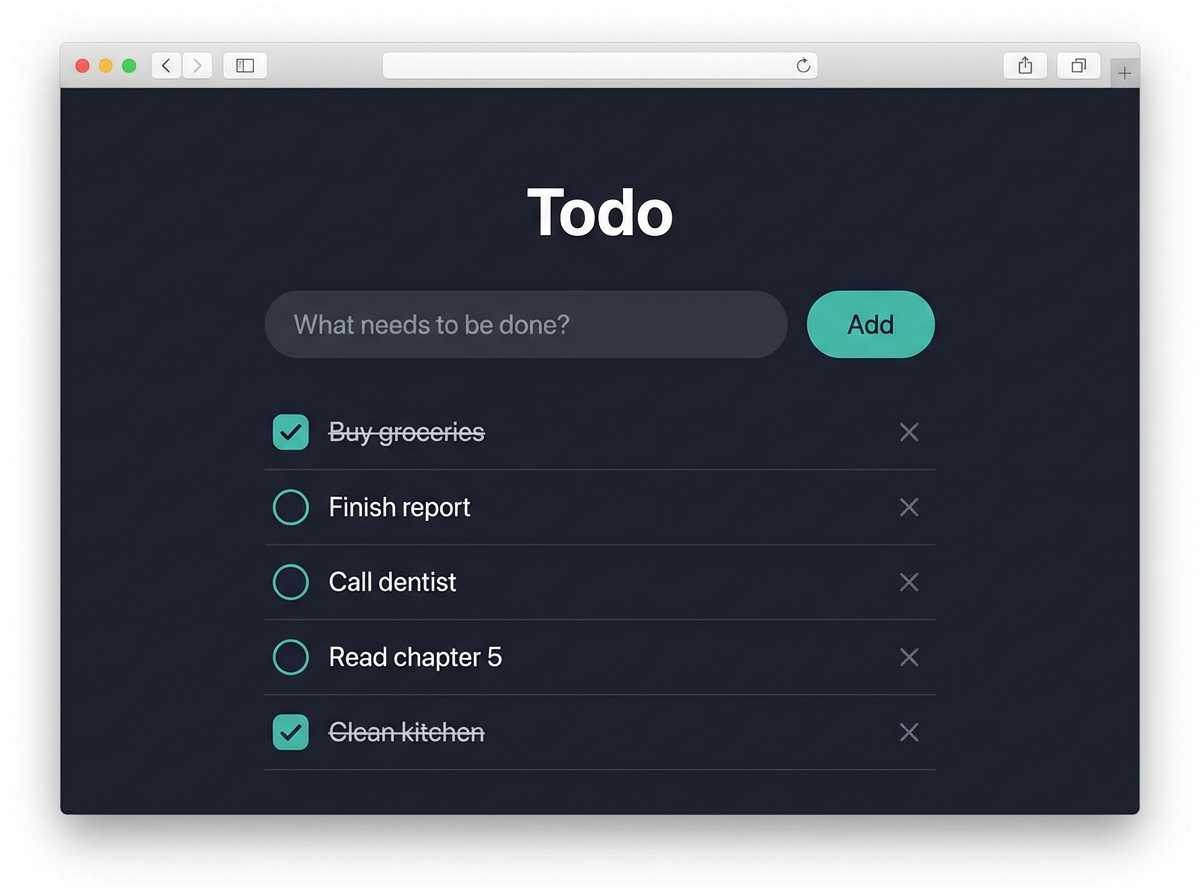
A fully working todo app that runs in your browser. Dark mode, saves your tasks between sessions, mark tasks as done, delete them. All from a single sentence typed into Claude Code.
Then you will iterate on it: add categories, search, due dates, and mobile layout. Each step is one prompt.
What You Need
- A Claude subscription (Pro at $20/month is enough)
- A computer (Mac, Windows, or Linux)
- About 15-30 minutes
That is it. No programming language to install. No frameworks. No package managers. No git.
Step 1: Install Claude Code
Open your terminal:
- Mac: Press
Cmd + Space, typeTerminal, press Enter - Windows: Press the Windows key, type
Terminal, press Enter - Linux: Press
Ctrl + Alt + T
Paste this and press Enter:
curl -fsSL https://claude.ai/install.sh | bash
Windows alternative (if curl does not work):
winget install Anthropic.ClaudeCode
Do not want to use a terminal? Download the Claude Code desktop app or use claude.ai/code in your browser. Both work the same way.
A browser window opens to sign in. Complete the sign-in process and return to your terminal.
Troubleshooting
If you see a "command not found" error after installing:
- Close your terminal completely (not just the tab)
- Open a new terminal window
- Type
claudeand press Enter
This fixes it almost every time. The installer adds Claude Code to your PATH, but the current terminal session does not pick it up until restarted.
Step 2: Create a Project Folder
mkdir my-todo-app
cd my-todo-app
claude
This starts Claude Code inside your new folder. You will see a prompt where you can type in plain English.
Step 3: Build the Todo App (one prompt)
Copy and paste this prompt:
Create a todo app as a single index.html file. Requirements: dark mode with a charcoal background, modern clean design, add/complete/delete tasks, tasks saved to localStorage so they survive page refresh. No external dependencies.
Claude Code will:
- Read your (empty) folder
- Plan the app structure
- Write the HTML, CSS, and JavaScript
- Create the file
It asks permission before creating the file. Type y to approve.
Open the result: Find index.html in your project folder and double-click it. It opens in your browser.
You now have a working todo app built from one sentence.
Step 4: Add Categories (iteration)
This is where it gets interesting. Copy the prompt from prompts/02-add-categories.md, or simply type:
Add color-coded categories to the todo app: Work (blue), Personal (green), Health (orange), Learning (purple). Each task gets a category dropdown. Filter buttons at the top to show only one category.
Claude Code reads the existing file, understands the current design, and adds categories while keeping everything else working. One prompt, one iteration.
Step 5: Add Search
Copy the prompt from prompts/03-add-search.md, or type:
Add a search bar at the top that filters tasks in real time as you type. It should search both task text and category names.
Watch how Claude reads the now-larger file, finds the right place to add the search input, writes the filtering logic, and tests that it does not break anything.
Keep Going
Each file in prompts/ is another iteration:
| Prompt | What It Adds |
|---|---|
| 01-create-todo.md | Base todo app (dark mode, localStorage) |
| 02-add-categories.md | Color-coded categories with filters |
| 03-add-search.md | Real-time search bar |
| 04-add-due-dates.md | Due dates with overdue highlighting |
| 05-make-responsive.md | Mobile-friendly layout |
After these five, try your own ideas:
- Drag-and-drop reordering
- Export tasks as a text file
- Dark/light mode toggle
- Task priority levels
- Daily task count chart
The point is not the todo app itself. The point is learning how Claude Code works: you describe what you want, it builds it, you iterate with another sentence.
How Claude Code Works
When you give Claude Code a task, it does not just generate text. It runs a loop:
- Read your files to understand the current state
- Think about what needs to change
- Act by editing files or running commands
- Check the result
- Repeat until the task is done
This is called the agent loop. It is what makes Claude Code fundamentally different from a chatbot. A chatbot gives advice. Claude Code takes action.
Example Output
The examples/ folder contains what Claude Code typically produces:
- index.html - After prompt 01 (base todo app)
- index-v2.html - After prompts 02 + 03 (categories + search)
Your results will look different. Claude Code generates fresh code each time. The functionality will be the same, but the exact styling and structure will vary.
What It Costs
See costs.md for a full breakdown. Short version: Pro at $20/month is the lowest-risk way to start.
Common Problems
See troubleshooting.md for solutions to the most common issues people run into during their first session.
Part of The Dharma Lab Claude Code article series.